
Table Of Contents
Introduction
Building a website used to be a complex task reserved for developers who knew how to code. Today, tools like Elementor have made website creation accessible to anyone, from small business owners to freelancers, bloggers, and entrepreneurs. Elementor is a WordPress page builder plugin that allows users to design and customize websites visually, eliminating the need for deep technical knowledge.
Imagine wanting to add a professional-looking contact form, a responsive image gallery, or a dynamic blog layout without touching a single line of code. This is where Elementor shines. Its drag-and-drop interface lets you see exactly how your website will look while building it. For beginners, this provides confidence and control. For experienced designers, it offers speed and flexibility.
Beyond just building pages, Elementor integrates with other tools and plugins to extend functionality. From eCommerce stores to portfolio websites, its adaptability makes it a go-to choice for many WordPress users. This review explores its features, pricing, performance, pros and cons, and real-world use cases, helping you decide if Elementor is the right tool for your website.
By the end of this article, you’ll have a clear understanding of what Elementor offers, how it works, and how it can impact your website creation process.
What Is Elementor and How Does It Work?
Elementor is a WordPress plugin that functions as a visual page builder. Unlike traditional WordPress editors, it allows users to design pages in real time using a drag-and-drop interface.
Key Features:
- Drag-and-Drop Editor: Move elements around without coding.
- Live Preview: See changes instantly as you make them.
- Responsive Design Controls: Optimize your site for mobile, tablet, and desktop.
- Widgets: Pre-built elements like buttons, forms, sliders, and galleries.
- Template Library: Ready-made templates to speed up page creation.
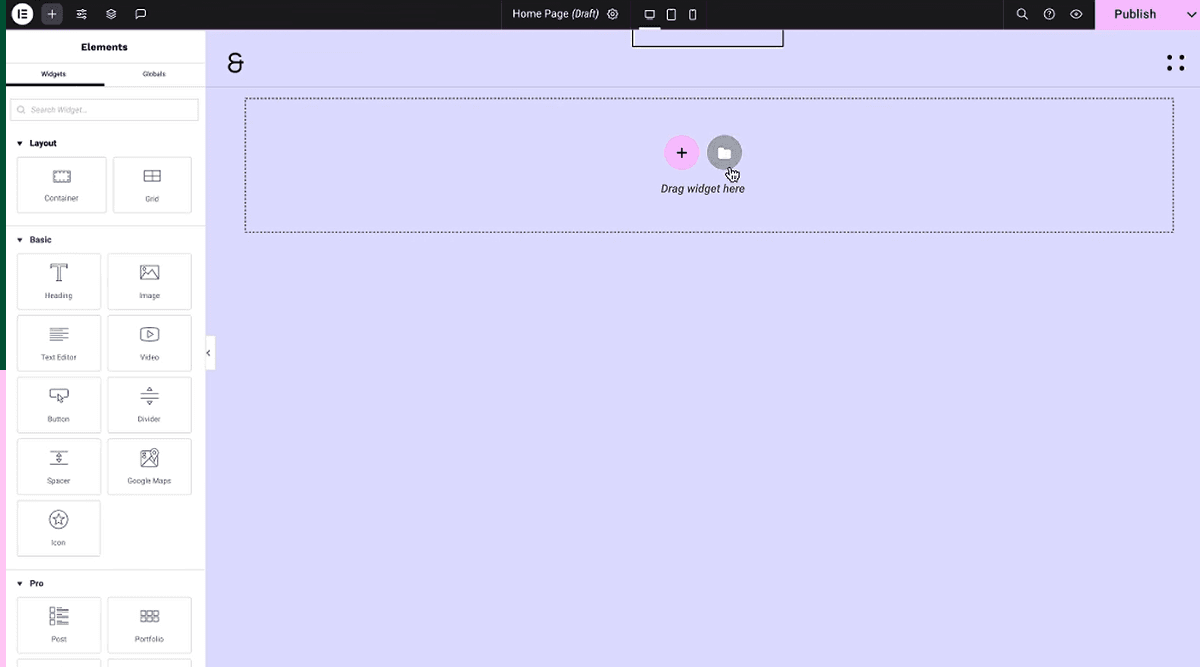
When you install Elementor on WordPress, it integrates directly with your existing website. You can create a new page, choose a template, and start editing by dragging widgets from the side panel onto your page. Each widget has customizable settings such as font style, color, layout, and animation effects.
One practical example is building a landing page for a small business. With Elementor, you can drag a headline section, insert an image, add a call-to-action button, and preview the page in real time. There’s no need for CSS or HTML knowledge. This immediate visual feedback simplifies the design process and reduces errors.
Elementor also supports third-party integrations, such as email marketing tools, social media embeds, and eCommerce plugins like WooCommerce. This makes it a versatile option for building professional websites that are both functional and visually appealing.
Looking to grow your online presence? XSquareSEO offers expert web design and development, web optimization, link building, technical SEO, content writing, and on-page SEO services to help businesses build functional, user-friendly, and search-optimized websites.
Elementor Free vs Pro: Features Comparison
Elementor comes in two versions: a free plugin with basic functionality and Elementor Pro with advanced features. Choosing between the two depends on your website needs.
| Feature | Elementor Free | Elementor Pro |
| Drag-and-Drop Editor | ✔️ | ✔️ |
| Responsive Controls | ✔️ | ✔️ |
| Widgets | 40+ | 90+ |
| Theme Builder | ❌ | ✔️ |
| WooCommerce Builder | ❌ | ✔️ |
| Popup Builder | ❌ | ✔️ |
| Custom Fonts & Icons | ❌ | ✔️ |
| Professional Templates | Limited | Extensive |
Key Differences
- Widgets: Free users get essential widgets, while Pro adds forms, pricing tables, posts, slides, and global widgets.
- Theme Builder: Pro allows full customization of headers, footers, and single post templates.
- Popup Builder: Create custom popups for subscriptions, promotions, or notifications.
- Support: Pro users have access to dedicated support, while free users rely on community forums.
For example, if you want to create a membership site with custom login pages, dynamic content, and unique templates, Elementor Pro is necessary. On the other hand, if you are just building a simple blog or portfolio, the free version provides enough flexibility to create a clean, functional website.
This comparison helps users make an informed decision without paying for features they won’t use.
Performance and Ease of Use
Elementor is designed for simplicity, but how does it perform in practice?
Performance
- Speed: Pages built with Elementor load quickly when optimized properly. Using lightweight templates and minimizing third-party plugins enhances performance.
- Compatibility: Works seamlessly with most WordPress themes and plugins, but poorly coded themes may conflict.
- Responsive Design: Built-in tools make it easy to adjust layouts for mobile, tablet, and desktop.
Ease of Use
- Intuitive Interface: The drag-and-drop system is beginner-friendly.
- Template System: Pre-made blocks allow users to design professional pages quickly.
- Real-Time Editing: Changes are visible immediately, reducing trial-and-error time.
- Learning Curve: While beginners can start easily, advanced design features may take time to master.
Consider a small business owner who wants to create a product landing page in one afternoon. Elementor allows them to add text, images, buttons, and forms without touching code. They can test how the page looks on mobile devices and adjust spacing, fonts, and colors instantly. For most users, this balance of performance and usability makes Elementor practical and efficient.
Real-World Use Cases
Elementor’s versatility suits a wide range of websites.
1. Business Websites
Companies use Elementor to build professional websites with service pages, contact forms, and portfolios. The Pro version enables full control over headers and footers.
2. E-Commerce Stores
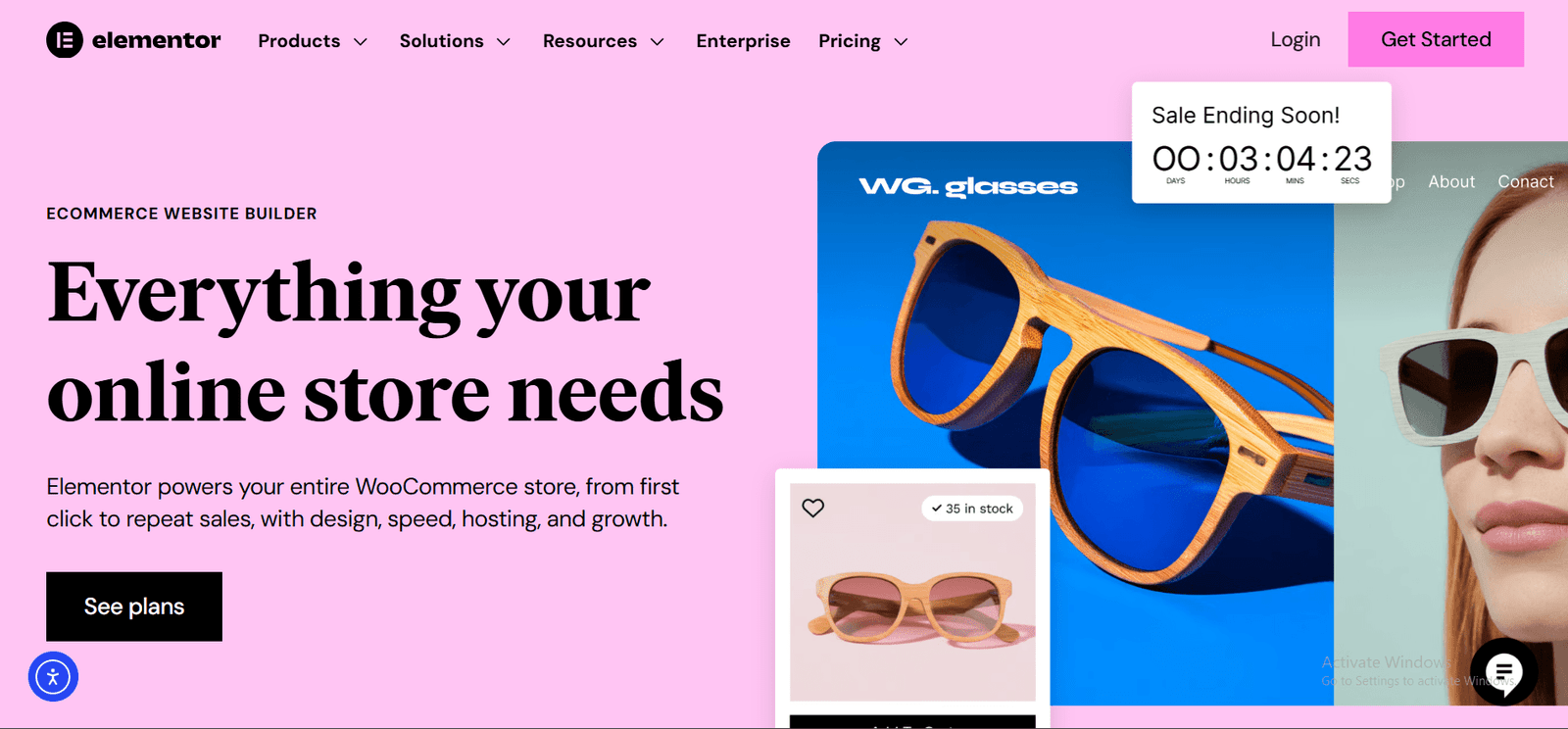
WooCommerce integration allows users to design product pages, checkout pages, and shop layouts without coding. Popups and product sliders enhance conversions.
3. Portfolios and Blogs
Artists, photographers, and writers can showcase their work using customizable galleries and blog layouts.
4. Landing Pages
Digital marketers use Elementor to create high-converting landing pages with call-to-action buttons, countdown timers, and lead capture forms.
5. Membership and Subscription Sites
With dynamic content and Pro widgets, users can create membership portals, login pages, and subscription dashboards.
These examples highlight Elementor’s adaptability, making it suitable for both simple and complex websites.
Pros and Cons of Elementor
Pros
- No coding required for professional designs
- Large library of templates and widgets
- Responsive and mobile-friendly
- Compatible with most WordPress themes
- Supports third-party integrations
Cons
- Pro version is paid, which may not suit all budgets
- Can slow down websites if too many widgets are used
- Advanced features have a learning curve
Weighing pros and cons helps potential users decide if Elementor fits their goals and resources.
Tips for Getting the Most Out of Elementor
- Use Templates Wisely: Start with pre-made templates to save time.
- Optimize Performance: Limit heavy widgets and compress images to improve speed.
- Learn Shortcuts: Keyboard shortcuts speed up editing.
- Integrate Smartly: Use only necessary third-party plugins to avoid conflicts.
- Regular Updates: Keep Elementor and WordPress updated for security and compatibility.
- Experiment with Widgets: Test different layouts, forms, and popups to see what works best for your audience.
Implementing these tips ensures a smoother building process and better website performance.
Conclusion
Elementor is a powerful website builder that simplifies the design process while offering professional-level customization. Whether you are a beginner or an experienced designer, it provides tools to create attractive, responsive websites without coding. The free version is sufficient for simple websites, while Elementor Pro opens up advanced design capabilities, dynamic content options, and complete control over your site layout.
Real-world applications from business sites and eCommerce stores to blogs and landing pages demonstrate its versatility. While there are minor drawbacks such as potential performance issues and a learning curve for advanced features, its benefits outweigh the limitations for most users.
Ultimately, Elementor enables individuals and businesses to build websites that look polished and function efficiently, making web design accessible, faster, and more creative.
FAQs About the Elementor Plugin
What is Elementor used for?
Elementor is a WordPress page builder used to design and customize websites visually, allowing users to create pages using drag-and-drop widgets without coding.
Is Elementor free to use?
Yes, Elementor offers a free version with essential features. Elementor Pro provides advanced widgets, templates, theme builder, and popups.
Can I use Elementor with any WordPress theme?
Elementor works with most WordPress themes. For best results, choose themes that are compatible and lightweight to avoid conflicts and improve performance.
Does Elementor affect website speed?
Elementor can impact speed if too many widgets or heavy templates are used. Optimizing images and limiting unnecessary plugins ensures fast page loading.
Can I build an online store with Elementor?
Yes, Elementor integrates with WooCommerce, allowing users to design product pages, checkout pages, and shop layouts without coding.
Is Elementor beginner-friendly?
Yes, its drag-and-drop editor, templates, and live preview make it accessible for beginners, though advanced features may require learning.
Can I create mobile-friendly websites with Elementor?
Yes, Elementor includes responsive design controls, allowing you to adjust layouts, fonts, and spacing for desktop, tablet, and mobile devices.
Do I need Elementor Pro to build a professional website?
Not necessarily. The free version works for simple sites, but Elementor Pro is recommended for advanced features like theme builder, popups, and dynamic content.